How to Merge Worksheets in Excel
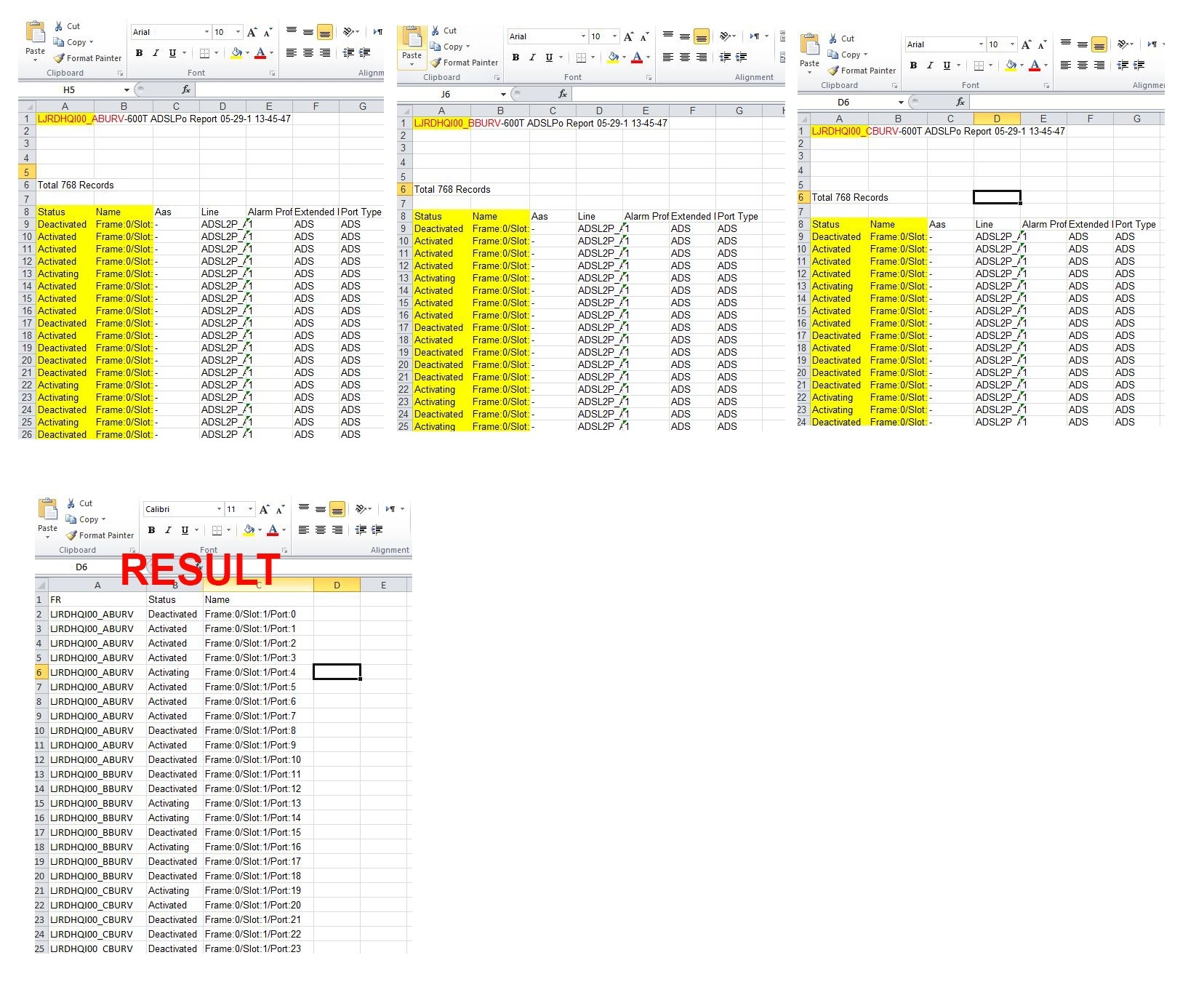
Merging worksheets in Excel can significantly enhance your data management efficiency. Whether you are consolidating information from multiple sources or simply organizing your data into a single sheet, understanding how to merge worksheets is essential for effective data analysis. This process allows you to streamline your workflow and make informed decisions based on comprehensive datasets.
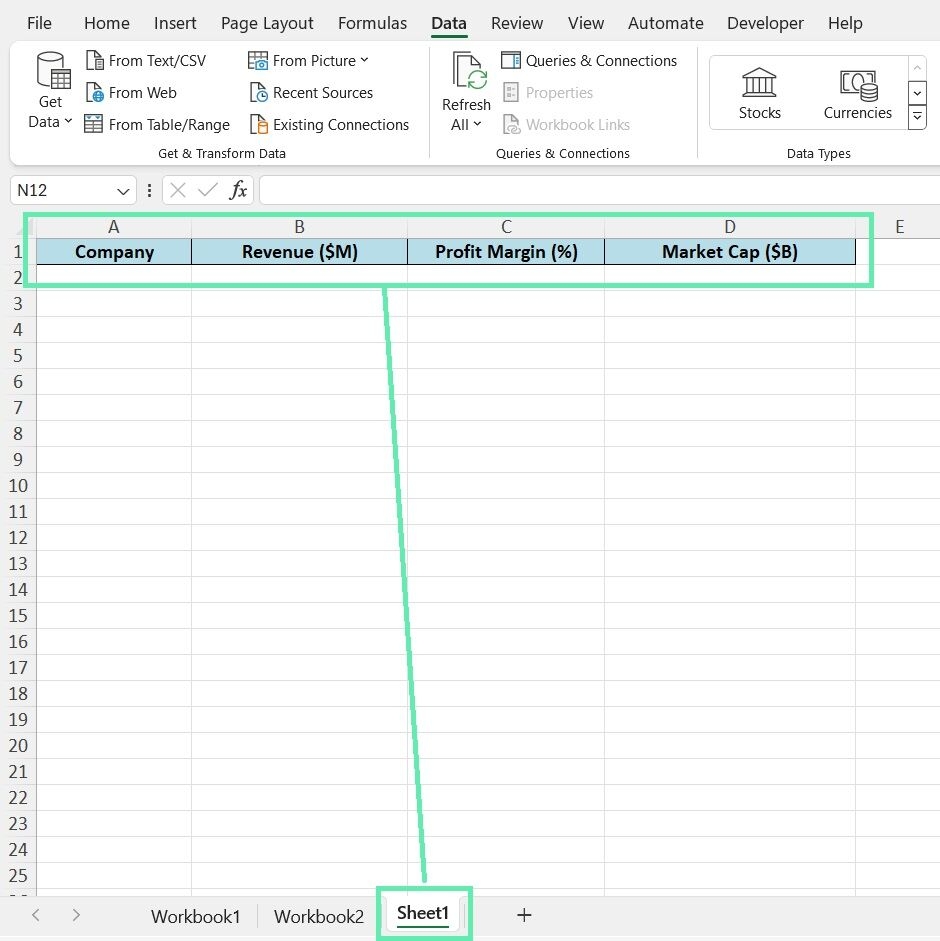
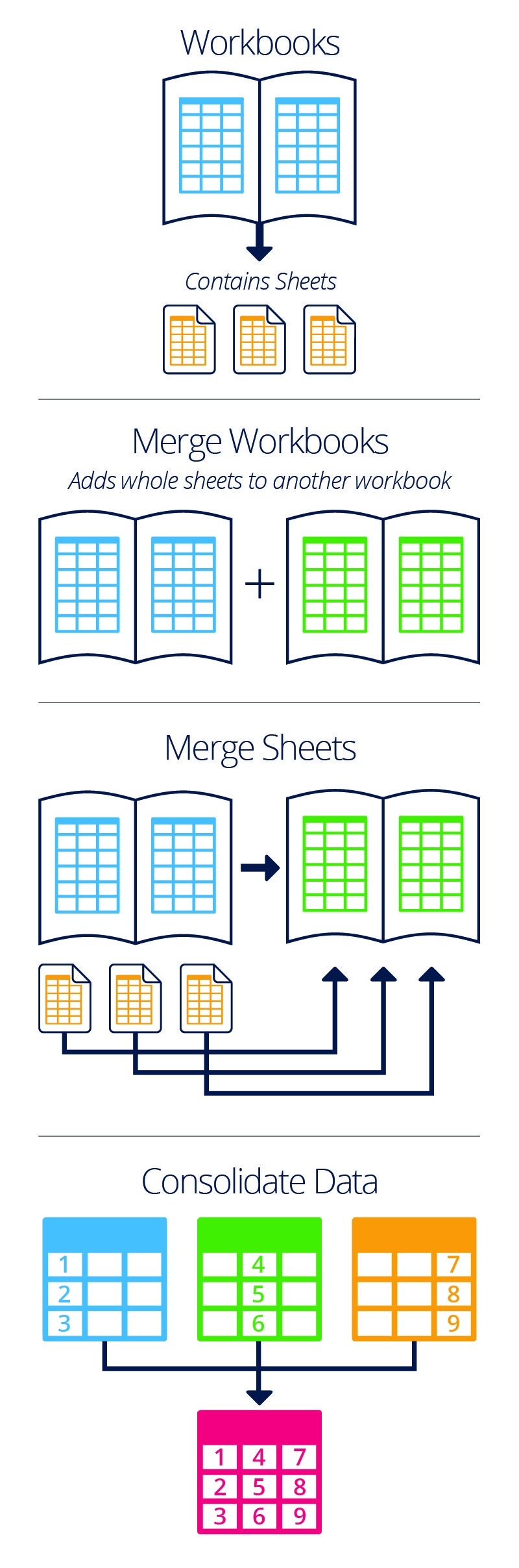
Excel offers various methods to merge worksheets, catering to different user needs and preferences. From simple copy-pasting to utilizing advanced features like Power Query, there are several ways to achieve a seamless integration of data. This article will guide you through the most effective techniques for merging worksheets in Excel, ensuring that you can handle your data with ease.
How to Merge Worksheets in Excel
One of the simplest ways to merge worksheets is by using the copy and paste method. Begin by opening the first worksheet you want to merge. Select the range of cells you wish to copy, right-click, and choose “Copy.” Next, navigate to the destination worksheet, select the cell where you want the data to appear, right-click, and choose “Paste.” This method is quick but may not be ideal for large datasets.
If you are dealing with multiple worksheets that have similar structures, using the Consolidate feature can be very effective. To do this, go to the “Data” tab and click on “Consolidate.” Choose the function you want to use (e.g., Sum, Average) and then select the ranges from each worksheet that you want to consolidate. This method allows for more organized data merging and can handle larger datasets efficiently.
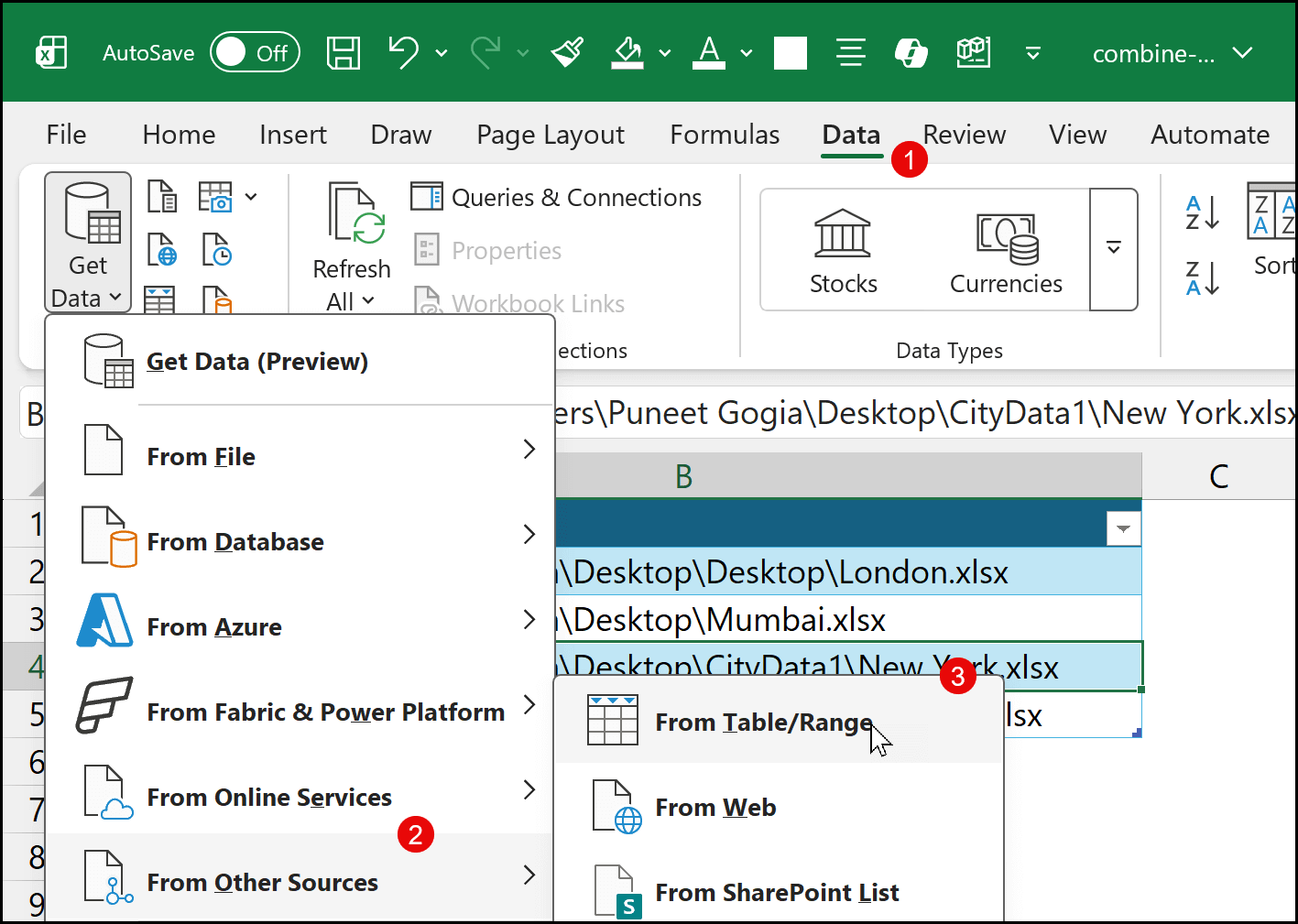
For users looking for a more advanced solution, Power Query is an excellent tool for merging worksheets. To use Power Query, go to the “Data” tab and select “Get Data.” Choose “From Other Sources” and then “Blank Query.” In the Power Query editor, you can import multiple sheets and append them into a single table. This method is particularly useful for complex datasets as it allows for transformations and cleaning before merging.
Another option is using VBA (Visual Basic for Applications) for those comfortable with coding. By writing a simple script, you can automate the process of merging multiple worksheets into one. This approach is highly customizable and can save time if you frequently need to merge data from various sources.
In conclusion, merging worksheets in Excel can be accomplished through various methods depending on your specific needs. Whether you choose simple copy-pasting, utilize built-in features like Consolidate or Power Query, or opt for VBA scripting, each method has its advantages. By mastering these techniques, you can enhance your productivity and ensure that your data is organized effectively.
Download and Print how to merge worksheets in excel Listed below